Build Your Email & Calendar Summarizer in ChatGPT
A practical ChatGPT Project that helps you review connected email, calendar, and task apps so you can quickly see what needs action, what needs review, and what should become a task.
Built for business owners, operators, and busy teams who need a cleaner way to stay on top of communication, follow-up, deadlines, and daily work.
Your inbox and calendar already know where the pressure is
Most business owners do not need another dashboard. They need a faster way to see what actually matters.
Email, calendar, and task apps often hold the real pressure points:
The Email & Calendar Summarizer helps sort the signal from the noise.
What the Email & Calendar Summarizer does
This ChatGPT Project reviews connected sources for a specific timeframe and gives you a clean business-focused summary.
It helps answer:
- What needs action today?
- What needs review soon?
- What should become a task?
- What can be ignored?
- What is tied to a customer, client, project, job, account, case, order, vendor, or deadline?
Needs action
Items that likely need same-day attention, such as urgent client replies, deadline-sensitive emails, calendar prep, or business issues that should not wait.
Needs review soon
Important items that matter, but do not usually need same-day action. This helps keep useful work from getting buried.
Tasks
Action items pulled from emails, calendar events, reminders, and connected task apps, organized into a simple prioritized list.
How it works once the Project is built
After the Project is set up, you use simple timeframe commands.
When you type one of those commands, the Project reviews the connected sources for that timeframe and returns a short overview first.
Overview:
- - Biggest action pressure: Client follow-up and two calendar prep items need attention.
- - Biggest review-soon pressure: Several vendor and internal update emails should be reviewed later.
- - Biggest task pressure: Three follow-up tasks appear tied to active business items.
Would you like the detailed view? If so, just type: Detailed
If you want the full report, type:
Then the Project gives the complete view with:
- Needs action today
- Needs review soon
- Tasks
The Project needs to know what matters to your business
The most important part of this setup is the Business Relevance Profile.
The Project should not treat every email, event, or task as important. It needs to know what matters for your business.
A construction company, insurance agency, accounting firm, law firm, property manager, med spa, and consulting business all care about different things.
The Business Relevance Profile tells the Project what to include, what to ignore, and what keywords or people to watch for.
Business Relevance Profile
- Business name
- Business type
- Primary user
- Relevant clients, jobs, projects, accounts, matters, cases, claims, orders, or files
- Same-day action triggers
- Review-soon triggers
- Important keywords
- Important people, vendors, tools, or systems
- Noise to ignore
- Special notes
This keeps the Project focused on business-relevant items instead of creating a messy inbox recap.
How to build your Email & Calendar Summarizer
* Requires a paid ChatGPT Plus account ($20/mo.) to use ChatGPT Projects. Go to: https://chatgpt.com/
Follow these steps to create your own Email & Calendar Summarizer inside ChatGPT. You do not have to finish everything in one sitting, but the Project will work better when your Business Relevance Profile is clear.
Create a new Project in ChatGPT
Name the Project
Download the Project Prompt
Insert the prompt into your new Project
Answer the setup questions
- What the business does
- Who will use the summarizer
- What customers, clients, jobs, projects, accounts, cases, claims, orders, or matters should matter
- What needs same-day action
- What can wait for review
- What keywords, people, vendors, tools, or deadlines to watch for
- What should be ignored as noise
- What output style is most useful
When the prompt is done, type DONE
Ask for the ChatGPT Project Instructions
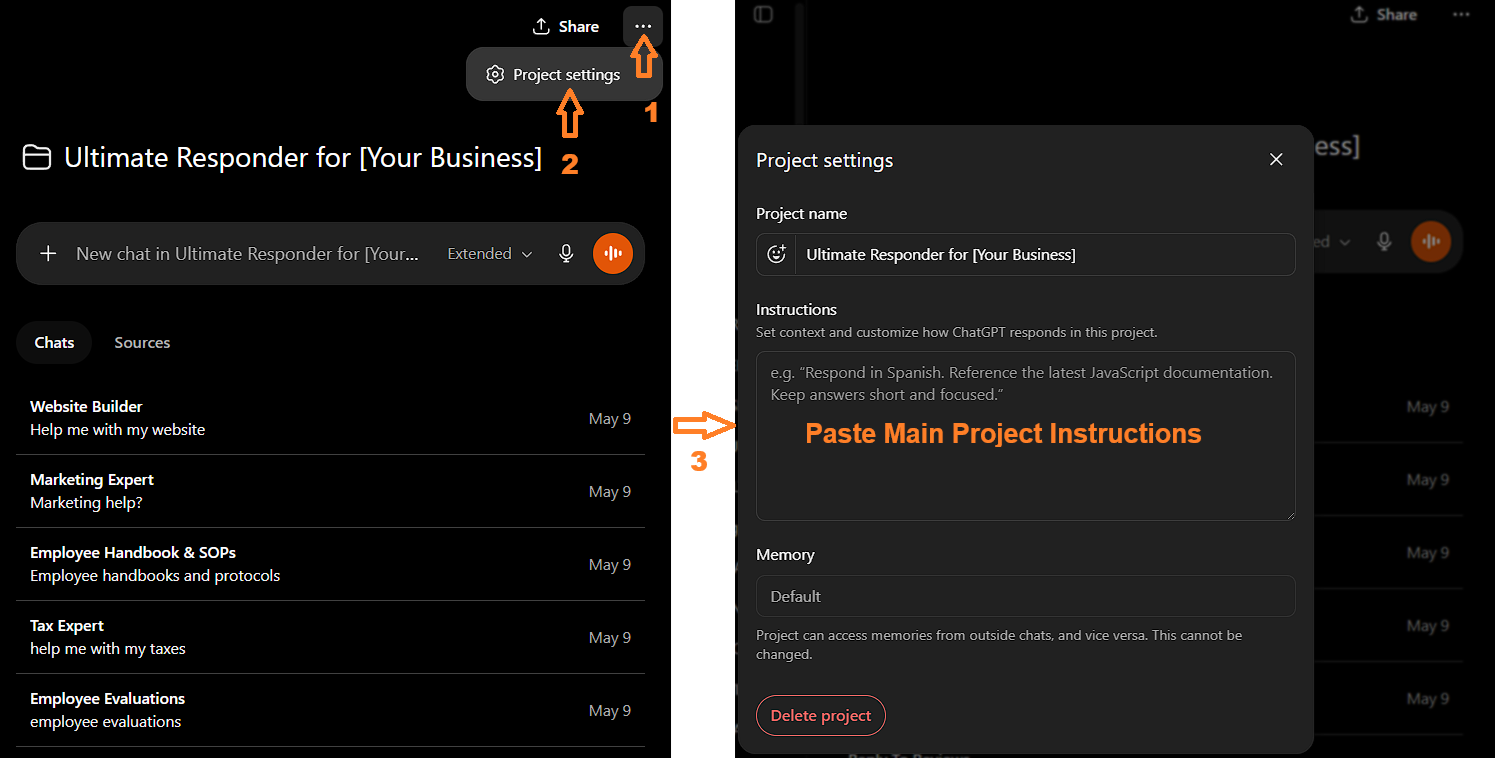
Add the Business Relevance Profile
Add the Operating Guide as a Source
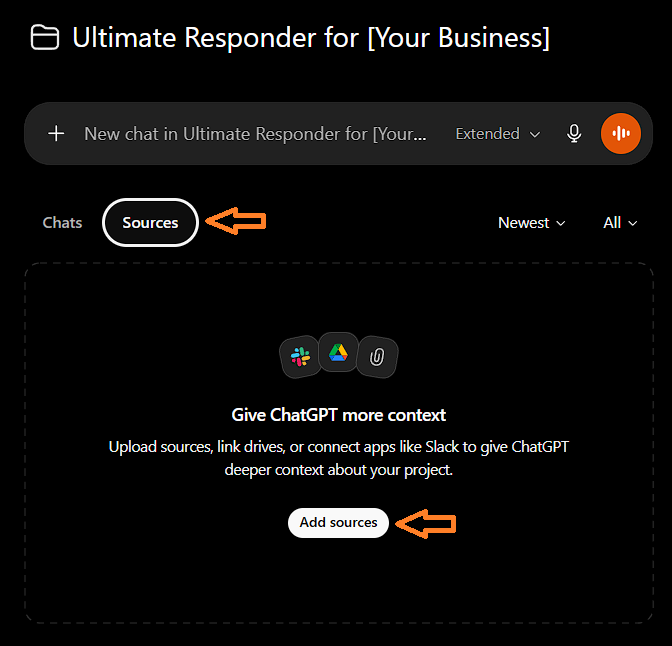
Connect your apps
- Gmail
- Google Calendar
- Outlook email
- Outlook Calendar
Test the Project with a simple command
Create separate chats for different reporting habits
- Daily Triage
- Weekly Review
- Tomorrow Prep
- Follow-Up Review
- Task Cleanup
- Calendar Prep
Simple commands to use after setup
You want to know what needs attention today.
You want to prepare for tomorrow’s meetings, deadlines, and follow-up.
You want to catch anything that slipped.
You want a bigger picture of current pressure.
You want to prepare ahead.
You want to review what happened and find open loops.
Note: After any timeframe command, type Detailed if you want the full report.
What the output looks like
The Project uses a two-step output. First, it gives a short overview. Then, if you ask for details, it gives a fuller report.
Brief Overview Example
Overview:
- - Biggest action pressure: Two client emails and one calendar prep item need attention today.
- - Biggest review-soon pressure: Several vendor updates and one internal project thread should be reviewed later.
- - Biggest task pressure: Follow-up tasks are tied to an open proposal and a scheduled client meeting.
Would you like the detailed view? If so, just type: Detailed
Detailed View Example
1. Needs action today
- Type: Email
- Source: Client email
- Subject or title: Follow-up on proposal
- Related item: New service proposal
- Time or due date: Today
- Keywords: proposal, follow-up, approval
- Why it matters: The client is waiting on the next step.
- Next action: Reply with the requested detail and confirm timing.
2. Needs review soon
- Type: Calendar
- Source: Calendar event
- Subject or title: Team planning meeting
- Related item: Internal planning
- Time or due date: Thursday
- Keywords: planning, team, next steps
- One short reason: Worth reviewing before the meeting.
3. Tasks
- Priority 1
- Source: Email
- Task title: Follow up with client about proposal
- Related item: New service proposal
- Due date or time: Today
- Keywords: follow-up, proposal
- Why it matters: The next step depends on your reply.
- Next action: Send a short response and confirm the timeline.
Note: The real report will depend on your connected sources and your Business Relevance Profile.
The Project should ignore noise
The Email & Calendar Summarizer should stay focused. It should leave out items that do not matter to the business.
- Promotions
- Coupons
- Newsletters
- Webinar invites
- Mass vendor pitches
- Cold sales outreach
- Social notifications
- Routine digests
- Generic system alerts
- Personal messages unrelated to the business
- Low-value reminders with no business consequence
The goal is a useful business triage, not a recap of everything in your inbox.
Who this is useful for
This Project is useful for owner-led businesses, busy operators, managers, assistants, and teams who need a cleaner way to stay on top of business communication.
This is especially useful when the business already has too much buried in email, calendar entries, reminders, and scattered task notes.
How to get the most out of the Project
The Project works best when it has clear instructions and clean business context.
If the output feels too noisy, tighten what the Project should ignore. If it misses something important, update the Business Relevance Profile.
Want help building yours?
You can build your Email & Calendar Summarizer yourself using this guide.
If you want help setting it up, cleaning up the instructions, creating the Business Relevance Profile, or testing the workflow, Practical Ai can help.
Common ways Practical Ai helps:
- Build ChatGPT Projects for business use
- Create clean Project Instructions
- Build Business Relevance Profiles
- Organize source documents
- Set up practical email and calendar workflows
- Help test and refine outputs
- Create simple business systems that save time